

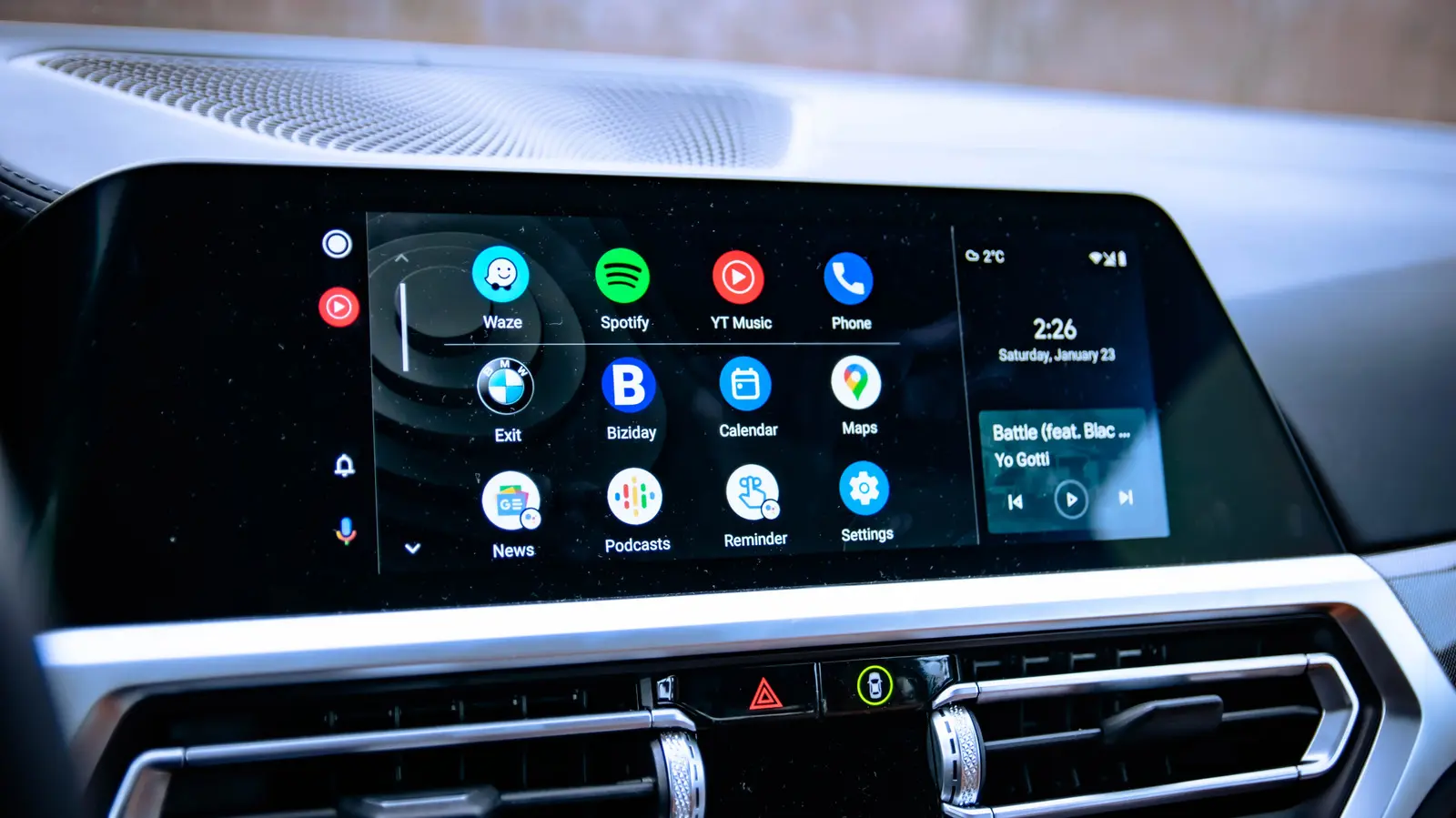
Android Auto was designed to bridge the gap between the smartphone in your pocket and the infotainment system in your car. Instead of fumbling with cables, Bluetooth menus, and separate car apps, Android Auto projects selected mobile apps onto the vehicle's display. The goal is to let drivers access maps, music, messages, and calls with minimal distractions. In many ways, it succeeds: you can keep your hands on the wheel and your eyes on the road while still using essential phone features.
However, Android Auto is not a magic wand. It depends on correct settings, thoughtful usage, and an understanding of how it interacts with both your phone and your vehicle. Many people treat Android Auto as a one-time setup and never revisit the settings. Some rely entirely on wireless connections when a wired connection would be more stable. Others fail to prepare for areas with no mobile signal or allow notifications to overwhelm the display. These mistakes are understandable, especially since Android Auto has evolved rapidly and now appears in a wide variety of cars and aftermarket head units.
To get the most out of Android Auto, it helps to know where drivers commonly go wrong. By recognizing and correcting the five biggest mistakes, you can transform Android Auto from a convenient novelty into a genuinely reliable driving companion. The following sections break down each mistake, explain why it matters, and offer practical advice for avoiding it.
Only Connecting Wirelessly
Modern vehicles frequently support wireless Android Auto, and drivers often prefer it because it eliminates the need to keep a cable in the car. Wireless connectivity means you can leave your phone in your pocket, bag, or purse and still have maps and media appear on the dashboard display. But this convenience comes with hidden costs.
Wireless Android Auto uses both Wi-Fi and Bluetooth to maintain a constant connection between the phone and the car. This places a heavier strain on the phone's battery compared with a simple wired connection. The wireless radio must remain active the entire time, transferring large amounts of navigation and audio data. Over a long drive, you may notice the phone becoming warm or the battery draining significantly, especially if you are also using GPS, streaming music, and receiving notifications. If you are only driving a few minutes to the grocery store, this may be no problem. But for daily commutes or road trips, wireless Android Auto can be a surprising drain.
In addition, wireless connections can be less stable than wired ones. Interference from other vehicles, parking garages, or even the physical layout of your car can cause dropouts or lag. If the wireless signal weakens, Android Auto may stutter, navigation instructions can arrive late, and audio might cut out. A wired connection avoids many of these problems because it provides a direct, stable data path between the phone and the infotainment system. As a bonus, it charges your phone while you drive. Instead of assuming wireless is always the better choice, consider the situation. If you need maximum reliability or want to keep your battery strong, plug in the phone. If you prefer the freedom of wireless for short trips, use it sparingly and keep a good quality USB cable in the car as a backup.
Unlocking Your Phone Every Time You Want to Use Android Auto
Many drivers treat their phones the same way whether they are standing in a crowd or sitting behind the wheel. They automatically reach for the phone, unlock it with a fingerprint, PIN, or face scan, and then connect it to the car. This habit makes sense from a security perspective, but inside your own vehicle, it creates an unnecessary extra step.
When you are driving alone in your personal car, the risk of someone grabbing your phone and accessing your private data is low. Android Auto is designed to project selected apps onto the infotainment screen while the phone itself remains locked. However, if your phone is locked and you have not enabled the right setting, Android Auto may refuse to start until you unlock the device. This can be annoying, especially if you are already moving and trying to get directions.
Fortunately, Android Auto includes a startup option that lets the system run while the phone is locked. Under the Android Auto settings on your phone, you can activate the "Start Android Auto while locked" toggle. Once enabled, connecting the phone to the car is enough to launch Android Auto, even if the phone screen remains dark and secured. This means you can get into the car, start the engine, and have maps and media ready without touching the phone. Of course, there are times when you might not want this feature. If you share your car with a family member or friend, or if you often leave your phone in the car for valet parking, you may prefer to keep the phone locked. But for most personal vehicles, this setting makes Android Auto much more seamless and reduces the urge to interact with the phone while driving.
Not Downloading Offline Maps
Navigation is one of the biggest reasons people use Android Auto. Having turn-by-turn directions appear on a large display is much safer than checking a small phone mounted on the dashboard. But navigation apps such as Google Maps depend on live data, including current road conditions, traffic incidents, and updated routes.
If you drive through an area with poor cell coverage, Android Auto navigation can suddenly fail. The map may freeze, the route may disappear, or the app might show an error message. This is particularly dangerous if you are in an unfamiliar rural area, a mountain tunnel, or a region where mobile networks are weak. It is easy to assume that phone coverage is everywhere, but many stretches of highway and back roads remain dead zones.
The solution is to download offline maps before you leave. Google Maps allows users to select a region and save the map data directly to their phone. When your signal drops, the app can continue guiding you using the offline content. The main trade-off is that you lose real-time traffic updates, but you still get reliable turn-by-turn directions. This is especially valuable for road trips and vacations. Before heading out, study your route and download offline maps for the entire corridor, including the destination and any areas you might pass through. Do not wait until you are already on the road. Offline maps take time and storage space, and they require an internet connection to download initially. A little preparation can prevent a stressful situation on an unfamiliar highway.
Not Tailoring Notifications
Android Auto does more than show maps and music; it also brings your phone notifications into the car. Incoming text messages can be read aloud, calls can be answered through the car's speakers, and app alerts may appear on the infotainment screen. This hands-free approach is generally safer than picking up the phone, but too many notifications can become their own distraction.
If your phone is constantly buzzing with messages from group chats, notifications from social media apps, or alerts from news apps, those interruptions can pull your attention away from the road. Android Auto is meant to reduce cognitive load, but a never-ending stream of notification chimes and pop-ups can have the opposite effect. It is important to remember that not every notification deserves a place in your car. Many Android users initially use Android Auto without changing any notification settings, then wonder why they feel overwhelmed during a short drive.
Android Auto gives you control through its settings. In the Messaging section, you can choose whether you want message notifications at all, whether group messages should come through, whether the first line of the message is shown, and whether a sound plays for each incoming message. Adjusting these toggles allows you to silence noisy group chats while still receiving important messages from key contacts. You can also decide whether message previews should appear on the car screen. For many drivers, turning off previews and chimes is the best way to maintain focus. The goal is not to eliminate communication entirely, but to find a balance where Android Auto serves you without becoming yet another source of distraction.
Leaving Automatic Media Resume Off
Imagine running errands on a Saturday morning. You drive to the bank, turn off the car, and go inside. When you return, you start the engine, and the car's screen lights up. If automatic media resume is disabled, you must reach for your phone, open the music app or podcast player, and press play. This may not sound like a major problem, but it becomes tedious when repeated throughout the day, especially in traffic or bad weather.
Android Auto includes an option to start music automatically when the phone connects to the car. In the Startup section of the Android Auto settings, there is a toggle labeled "Start music automatically." When enabled, Android Auto will resume whatever audio was playing during your previous drive as soon as the connection is made. If you were listening to a podcast, it continues from where you left off. If you had a playlist running, it picks up again without any input from you.
This small setting makes a surprisingly big difference in daily convenience. Instead of fumbling with apps while you try to pull out of a parking space, you can simply start driving and let the music or podcast return on its own. Even if you have enabled "Start Android Auto while locked," you still need this second toggle if you want playback to begin without manual effort. Take a moment to check your Android Auto settings and ensure both options are turned on. You may find that every trip becomes just a little less stressful when you no longer have to interrupt your drive to get your audio started.
Source:SlashGear News