

Every PC and laptop includes multiple USB ports, but most people never think about them beyond plugging in a cable. The port that is closest, easiest to reach, or pointing in the right direction often becomes the default choice. If your file transfers seem slower than they should be, your charging is crawling, or your external SSD never feels as fast as advertised, the problem may not be the drive or the cable. It may be that you are using the wrong USB port.
USB technology has changed dramatically over the years. The ports all look similar, yet the same rectangular connector on one machine can carry data at wildly different speeds. A USB 2.0 port was considered fast at the turn of the millennium, but today it is the weakest link in many desktop setups. Meanwhile, USB 3.0, USB 3.1, USB 3.2, USB4, and Thunderbolt ports offer much higher bandwidth, and choosing the wrong one can mean waiting far longer for large files to transfer.
USB ports may all look the same, but they aren’t
Unless you are the kind of person who reads manuals for fun, all USB ports on your PC or laptop may seem identical. USB has gone through several generations over the years, and each one came with a significant jump in how fast it can move data. The physical shape remained mostly the same for USB-A, so motherboard makers, laptop manufacturers, and desktop case builders have continued to offer ports that look nearly identical but behave very differently.
The most persistent standard is USB 2.0, which was released in April 2000 and still appears on many budget PCs and older laptops. It tops out at 480 Mbps, which sounds fine until you realize USB 3.0 is ten times faster at 5 Gbps. That means if you have been plugging your SSD into a USB 2.0 port all this time, you have been blaming the SSD for nothing. The drive may be capable of reading at over 500 MB/s, but the port will bottleneck it to just 30–40 MB/s. A large video project that should copy in under a minute could take ten minutes or longer.
USB generations and real-world speeds
Understanding USB generations is essential because theoretical speeds do not always translate directly to real-world file copies. USB 2.0 offers a maximum theoretical speed of 480 Mbps, but realistic file copy speeds usually fall around 30–40 MB/s. USB 3.0 and USB 3.1 Gen 1, both rated for 5 Gbps, deliver roughly 100–400 MB/s. USB 3.1 Gen 2, also known as USB 3.2 Gen 2, is rated for 10 Gbps and can come close to 1 GB/s in ideal conditions. The faster standards, like USB 3.2 Gen 2x2 at 20 Gbps and USB4 or Thunderbolt 3/4 at 40 Gbps, can achieve 2 GB/s and 3 GB/s respectively when paired with suitable drives.
The jump matters in everyday use. Plugging an external SSD into a USB 2.0 port instead of a USB 3.0 port can make a backup take four times longer. Plugging a high-speed portable SSD into a USB 3.0 port instead of a USB4 port can still leave speed on the table if the drive is capable of faster throughput. Many users only realize the difference when they transfer a folder full of photos, render files, or virtual machine images.
The wrong USB port can slow down file transfers and charging
Most PCs and laptops come with at least three or four USB ports scattered in different places. Like most people, I used to grab whichever one was the most convenient. On a desktop, that meant using the ports on the front panel, while on a laptop, whichever side the cable reached naturally. The problem is that the most convenient USB port is not always the fastest one.
If you are using the faster ports for peripherals like a keyboard and mouse while plugging storage drives into slower ports out of habit, you could be leaving a lot of transfer speeds behind. Even if two USB ports are sitting right next to each other, one could be USB 3.2 Gen 2 while the other might be USB 2.0. Desktop case manufacturers often connect front-panel ports using internal headers, and those headers may not all support the same speed.
It is not only about file transfers. USB standards also affect charging speeds. USB 2.0 ports max out at only 2.5W, while USB 3.x can deliver up to 4.5W. A proper USB-C Power Delivery port can go much higher, often 15W, 45W, or even more depending on the device. If you are plugging your phone, smartwatch, earbuds, or portable speaker into a random USB port, you might be charging far slower than you could.
USB-C ports vary just as much
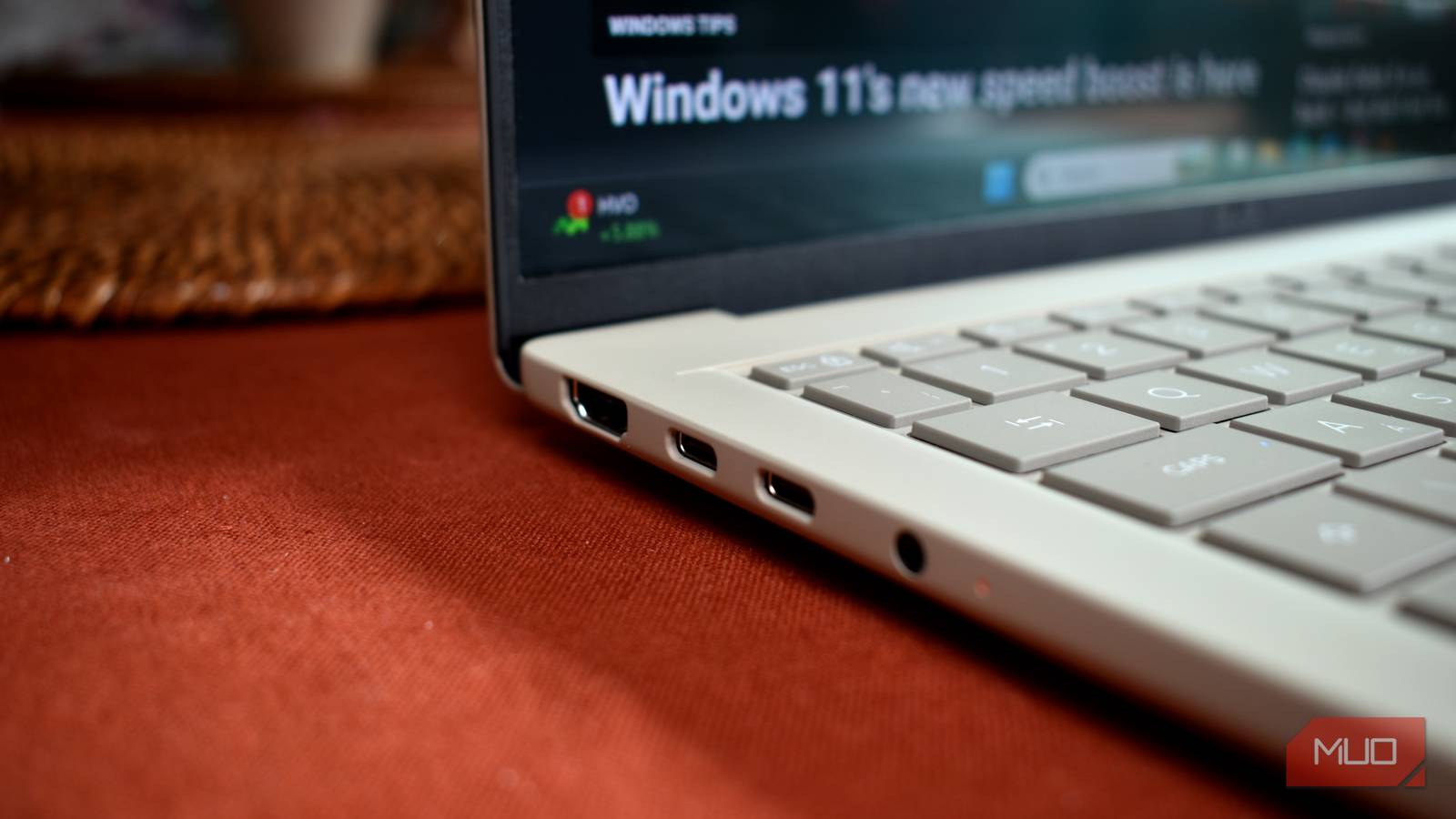
USB-C ports make the problem even harder to spot because they all use the same small reversible connector. One USB-C port on your PC might support USB4 or Thunderbolt 4, while another might only support USB 3.2 Gen 1 at 5 Gbps. A third USB-C port might be limited to display output or charging with no data transfer at all. You would never notice this simply by looking at the port because your drive will show up, your device will charge, and files will copy over. It is just that all these things will be slower than they could be.
Some laptops include multiple USB-C ports, but only one is connected directly to the processor’s high-speed lanes. Others share bandwidth with other components or rely on an internal hub. That means one USB-C port on the left edge of a laptop can outperform the identical-looking USB-C port on the right edge. The difference may not appear until you attach a fast external SSD or a high-resolution monitor.
Identifying USB ports is easy
Understanding USB standards is one thing, but how do you actually identify ports on your PC? Fortunately, there are several ways. The most obvious giveaway is color. USB 2.0 ports are typically black, while USB 3.0 ports are blue. Some manufacturers use green or teal to mark USB 3.1 Gen 2 ports. Red usually means the port stays powered even when your PC is off, which can be useful for charging devices overnight but does not necessarily indicate a faster standard.
The big catch is that there is no universal standard for color-coding USB ports. A blue USB port should normally mean USB 3.0, but a cheap case or motherboard could use any color it wants. The good news is that most reputable manufacturers follow these conventions, so color is still a decent first signal.
Check the logo next to the port
The second thing to look for is the logo printed next to the USB port, if there is one. A plain USB trident symbol typically means USB 2.0. If you see SS, meaning SuperSpeed, next to the symbol, the port supports USB 3.2 Gen 1 at 5 Gbps. SS+ or SS10 indicates USB 3.2 Gen 2 at 10 Gbps. Some ports also have a lightning bolt symbol, which usually means they support fast charging or, in the case of Thunderbolt, high-speed data and video.
On modern laptops, markings are often omitted to keep the exterior clean. That is why you should also check your operating system. Open Device Manager, expand the Universal Serial Bus controllers section, and look at the names listed there. Every USB port on your system will appear, and the name usually tells you the generation. For example, you might see “xHCI Host Controller” for USB 3.x or newer, and “USB Enhanced Host Controller” for USB 2.0. Device Manager does not map ports to physical locations, but it confirms what your system supports.
Use your motherboard or laptop manual
If you still have doubts, look up your motherboard or laptop model online or check the manual. The official specification page will list exactly which ports support which USB generation, which ones support Power Delivery, and which ones are wired to the CPU rather than a secondary chipset. This is especially helpful for desktop users who have multiple ports on the back panel. Rear USB ports on a motherboard can differ: some are USB 2.0, some are USB 3.2 Gen 1, some are USB 3.2 Gen 2, and some are USB4 or Thunderbolt depending on the board’s age and price range.
Practical tips for choosing the right USB port
Start by making a mental note of the ports you use for low-speed devices. Your wireless mouse receiver, keyboard, printer, or webcam do not need more than USB 2.0 speeds. Save your faster ports for external storage, card readers, phones that support fast charging, and docking stations. If your desktop has front-panel USB ports, check whether they are connected to a USB 3.0 header or an older USB 2.0 header. Many cases still include one USB 3.2 Gen 1 port and two USB 2.0 ports on the front, so do not assume every front port is equal.
If you own a high-speed external SSD, connect it directly to the best port your computer has. Avoid using a USB hub unless the hub is powered and supports the same USB generation. Many hubs split bandwidth among several devices, so a drive plugged into a hub can run much slower than it would when plugged directly into the motherboard. For USB-C and Thunderbolt devices, check whether the port you are using is labeled with a lightning bolt or a USB4 logo. If not, test each port with the same drive and compare transfer times.
Charging behavior also deserves attention. A USB 2.0 port may charge your phone slowly because it only provides 0.5 amps. A blue USB 3.0 port usually provides 0.9 amps, which is better but still not ideal for modern phones. A dedicated charging port or a USB-C Power Delivery port can provide several amps at higher voltages. If your laptop has a USB-C port that supports Power Delivery, you can use it to charge your phone, tablet, or even another laptop at full speed. But you need to identify the correct port first.
Finally, remember that cables also matter. A USB-C cable rated for USB 2.0 will bottleneck a USB4 port. A cheap cable may only support 480 Mbps data transfer or 3A current, no matter how advanced the port is. To get the best result, use high-quality cables that explicitly support the USB standard or Thunderbolt version you need. The port is only half of the equation.
By taking a few minutes to understand the USB ports on your computer, you can save yourself a great deal of frustration. File transfers will finish faster, backups will not interrupt your flow, and devices will charge at the speed they were designed to handle. The next time you plug something in, take a look at the port you have chosen. It might be the single easiest performance upgrade you can make without spending any money.
Source:MakeUseOf News